

Develop: Low-Rise Typologies
Low-Rise Typologies - Toronto Beta Version
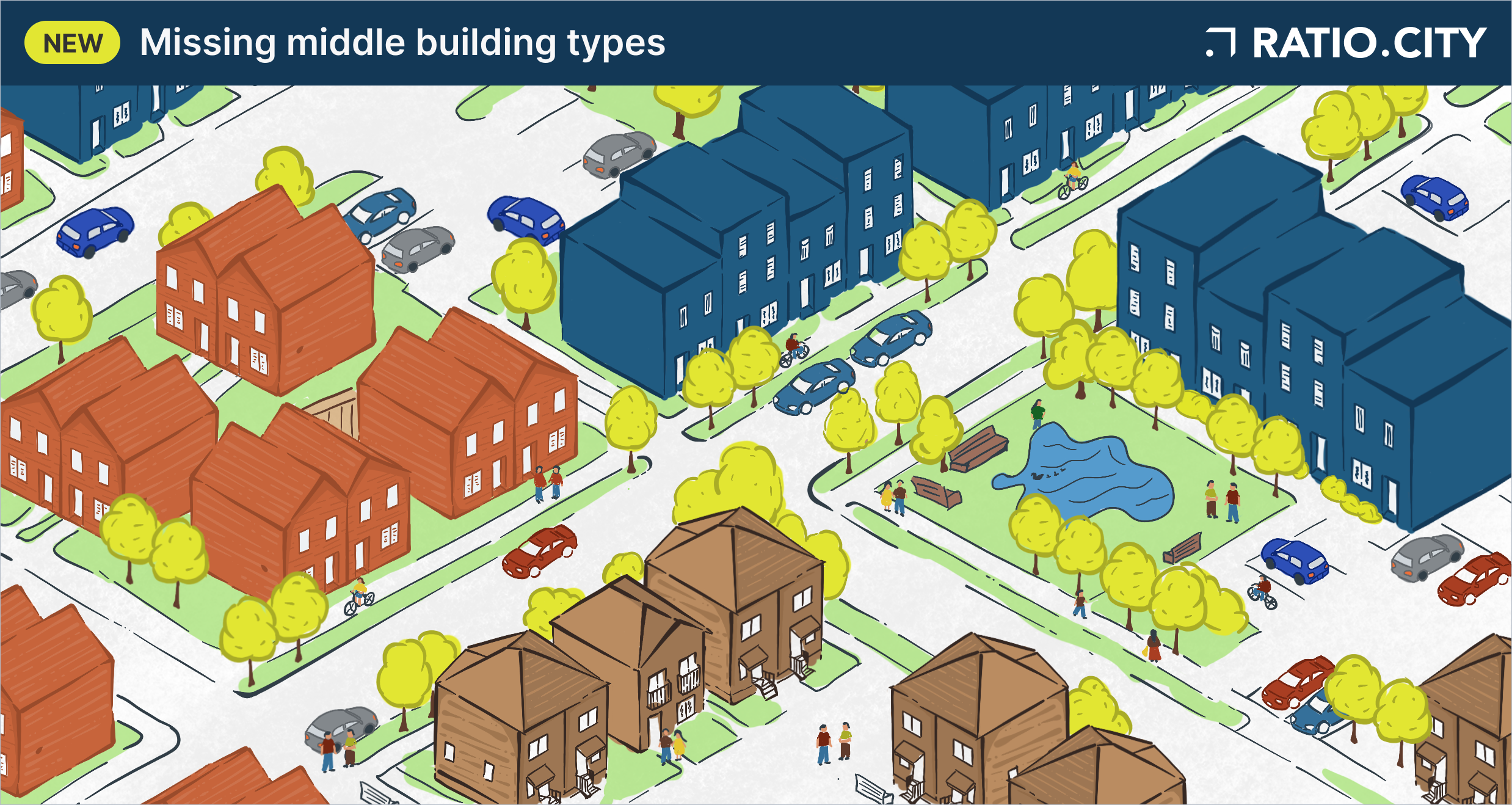
We’re excited to introduce low-rise massing typologies to the Ratio.City platform! These additions extend the Develop tool beyond mid-rise and tall buildings to include ground-oriented built forms that are central to the missing middle housing conversation.
This guide will walk you through everything you need to know to start working with the two new typologies:
🏘️ What’s New in the Develop Tool?
Townhouse
Multiplex (2 to 6 units)
Note: these updates are currently available for the City of Toronto only. Interested in similar tools for your city? Reach out to us at hello@ratio.city.
What’s Changed or New in the Develop Tool?
The low-rise massing feature lives within the same Develop tool you already know. We’ve made some updates that apply to all massing workflows in the City of Toronto. Most notably, the workflow now has four steps instead of three. Here’s how the steps map across:
| Existing Workflow | Updated Workflow |
|---|---|
| Step 1: Select Site
Select or draw your site and/or subdivide |
Same — No change (Step 1: Select Site) |
| Step 2: Build
Select your building typology (mid-rise or tall building) and indicate your building parameters (Form & Layout, Styling, and Efficiencies) |
Step 2: Define
Select your building typology (new low-rise options) and define your site boundaries (front, rear and sides) |
| Step 3: Build
Establish your built form characteristics (Form & Layout, Styling, and Efficiencies) |
|
| Step 3: Analyze
Generate shadow studies, parcel or development reports, export OBJ files |
Same — No change (Step 4: Analyze) |
💡 Important Information: The changes in this training material focus on Steps 2 and 3 (Define & Build in the updated workflow), which are where the new low-rise functionality lives. Step 1 - Select Site and Step 4 – Analyze (Previously Step 3) are unchanged.
⚠️ Warning: Details listed below as part of Step 3 only apply to low-rise typologies. If you select a mid-rise or tall building typology, your experience will be the same as before with exception to the fact that ‘select building type’ and ‘define site boundaries’ inputs have moved to a new step.
⚠️ Warning: Irregular parcel shapes may affect calculation accuracy. Where possible, subdivide your parcel into a regular shape for best results.
⚠️ Warning: It is best practice to define site boundaries and typologies for all subdivided sections of your site before moving into Step 3.
Define – Building Type & Boundaries
Step 2 is where you’ll choose your building type and set up your site boundaries. These two things work together to generate the as-of-right starting point for your massing.
The building typology dropdown now includes the following options:
Townhouse
Multiplex
Mid-rise
(2024 Draft – in development) Mid-rise
Tall building
Select the typology that best fits your project.
Low-rise building types: Townhouse & Multiplex
When you select a low-rise typology, you’ll be required to define the front, rear, and sides of your site before the massing is generated. This is a new step that helps us apply the correct default values and generate a massing that reflects as-of-right development from the start.
Once you’ve defined your boundaries and click ‘Continue’, the tool will review five key layers to establish the as-of-right condition for your site:
Zoning category
Lot coverage permissions
Height limits
EHON Major Streets designation
Permitted sixplex areas
💡 Important Information: The first massing you see after clicking ‘Continue’ will represent the as-of-right development for your site. You can think of it as your compliant starting point before you begin exploring different configurations.
Build – Form & Layout
Step 3 is where you’ll define the built form of your low-rise massing. This section covers the Form & Layout panel and the inputs that are specific to townhouse and multiplex typologies.
⚠️ Warning: The content in this section applies to low-rise typologies only. Mid-rise and tall building workflows are unchanged in this step.
Building Details
At the top of the Form & Layout panel, you’ll see a summary of the building type you selected in Step 2 (this is for reference and cannot be edited here) and the zoning category being used to define your defaults.
The zoning category is determined as follows:
If your selected parcel is already zoned for residential development, that zone will be shown.
If you select multiple parcels with different zoning categories, one will be auto-selected for you.
If your selected parcel is zoned for a non-residential use, the tool will default to Residential Detached (RD).
You can always change the zone using the dropdown if, for example, you’re working on an amendment application or want to test a different scenario.
💡 Important Information: See the ⓘ icon next to an input field? That means the value was clearly determined from our site review. If a value depends on a design detail that Ratio.City doesn’t have (like ceiling joist type or roof construction), we’ll flag that input with a notice and link directly to the relevant policy so you can determine the correct value for your project.
💡 Important Information: See an ↺ icon next to an input field? This means the initial value is a calculated one. Clicking reset will return it to the minimum setback requirement only, without factoring in building length or depth.
As-of-Right Reset
You’ll notice a new button at the top of the Form & Layout panel: ‘As-of-right development’. Clicking this will reset your massing back to the as-of-right condition, or the same state you saw when you initially clicked ‘Continue’ from Step 2. This is a great way to get back to a clean baseline if you’ve been exploring different configurations.
Basement Development
You can now indicate whether your project includes basement development by selecting the checkbox. Toggling it on won’t change the visual appearance of the massing, but it will update the statistics in the secondary panel including unit count, GCA, and net sellable area. See ‘Secondary Panel’ section for more details.
Minimum Value Assumptions
When two or more properties are selected together as a potential development site, the tool will always apply the most restrictive value across all selected lots for any regulation where a conflict exists, including height, lot coverage, FAR/FSI, and permitted storeys. This applies whether or not the lots have been formally consolidated. Until a pre-application consultation with the City confirms otherwise, the more permissive value cannot be assumed to extend across the full site. This is a conservative visualization assumption only. Users should engage a qualified planner to confirm applicable regulations before making any development decisions.
Setback and Stepbacks
The initial setback values in the massing are calculated values, not just the minimums. This means the tool takes the minimum required setback and factors in the maximum permitted building length and depth (where available) to generate a setback that represents the as-of-right condition.
Here’s what to expect:
If you see an arrow icon next to the setback value, it means the initial value is a calculated one. Clicking it will reset the input to the minimum setback requirement only, without factoring in building length or depth. If this does happen, you can always return this value to the initial as-of-right condition, through the button “As-of-right development” in the building details section.
Where a setback has requirements of a conditional statement (for example, 7.5m or 25% of lot depth – take the greater of the two), the tool will calculate and use the applicable value.
Where a design detail prevents the tool from assuming the input value, you’ll see a notice with a direct link to the relevant policy.
Build – Statistics
Residential Units
We’ve made some updates and introduced a new option for how residential units are calculated.
You now have two modes to choose from:
(Current) Average unit: You define an average unit size, and the unit count updates automatically to match the available GFA.
(New) Unit count: You define the number of units, and the average unit size updates to reflect what’s achievable within the available GFA.
The default mode depends on which typology you’ve selected.
| Typology | Default |
|---|---|
| Townhouse | Average unit: defaults to 1,100 sq ft average unit size |
| Multiplex (in sixplex-permitted zone) | Unit count: defaults to 6 units |
| Multiplex (standard zone) | Unit count: defaults to 4 units |
💡 Important Information: All values can be modified. The defaults are just a starting point to help you get going quickly.
⚠️ Warning: If you have the basement toggle turned on, the basement unit will be included in the unit count and average unit size calculations.
Secondary Panel
The secondary panel provides a live view of key statistics for your massing as you make changes. We recommend keeping an eye on it as you work. It’s a great way to stay on top of compliance and understand the impact of your inputs in real time.
We’ve added several new fields to the secondary panel. These sit alongside existing metrics and highlight both the permitted values and what your current massing represents:
Building length
Building depth
Permitted lot coverage
Permitted GFA
Permitted FAR
Each of these new fields shows what is permitted under zoning alongside the values of your current massing, so you can easily compare them.
⚠️ Warning: If your massing exceeds a permitted value, you’ll see a red warning icon next to that field in the secondary panel. You’ll need to adjust your inputs to resolve the issue before the massing can be considered compliant.
If you toggle on basement development, you’ll see the following updates in the secondary panel:
A new entry will appear in the Floor Area Summary section
Unit count areas will update to include the basement unit
GCA and net sellable area will be updated
⚠️ Warning: FAR and GFA do not include basement numbers. These metrics are calculated for above-grade area only.
Sharing Your File
To share your low-rise massing file with colleagues, you’ll need to add them to your project team. Their ability to access editing tools depends on whether they have opted into the beta features, as well as the permissions you’ve assigned them. If they have not opted in, they will still be able to open the file but will not be able to make edits. Please review the Projects, Teams, and Notifications training materials for further details.
Coming Soon
We’re continuing to build out the low-rise massing feature. Here’s a look at what’s on the roadmap:
Garden suite, laneway suite, and low-rise apartment typologies
Ability to add a garden suite to a multiplex or townhouse development
Parking details
Have a feature request or something you’d like to see? Reach out to us at hello@ratio.city. We’d love to hear from you!

FAQs
-
You can add Builder or Explorer licenses later if more members of your team are interested in using Ratio.City. Licenses can be added at any point in your billing cycle. If you are in the middle of a billing cycle, you will be charged the prorated price before you checkout.
-
Yes, you can reassign any of your current Builder or Explorer licenses from one user within your organization to another. To do this, access your organization’s users in the Organization section and use the ‘Assigned license’ dropdown to make changes. Please note that a user’s access to their files and projects can be affected by license changes.
-
No, owners can maintain a ‘Guest’ license which has no cost associated with it.
-
There is no limit to how many members you can have in your organization. Members can be assigned paid Builder or Explorer licenses, or they can have limited access to the platform with the free Guest license. If you have more than five paid users, you may qualify for a volume discount—contact our team for more information.
-
Your organization refers to the formal structure of people who typically work for the same business. An organization also is associated with payments of licenses to access Ratio.City. A team (within a Ratio.City project) is a group of people who are trying to share and collaborate on files and materials generated on the platform. Teams can consist of multiple users from different organizations.
-
You can change your license at the end of your billing term. If you want to upgrade from an Explorer license to a Builder license in the middle of an annual billing term, you can do so via the Billing section, and you will be shown the pro-rated price before you checkout.
-
Yes, if you have any unassigned (unused) licenses, you can mark them for removal at the end of your billing cycle. You can do this in the ‘Billing’ section by clicking ‘Remove’. Note that the licenses must be unassigned before they can be removed. The license will be accessible until the end of the billing period. The license(s) will be removed for the next billing cycle.
-
Yes, you can cancel your subscription at any time by going to the Billing section and clicking on ‘Cancel’. Follow the steps in Stripe to cancel your subscription. You will have access to your license(s) until the end of the term. We don’t offer refunds (prorated or otherwise) on annual or monthly contracts if you cancel before the end of your current term.
-
We accept credit card payments through Stripe. If you wish to change your credit card payment details, you can do so through the ‘Billing’ section under ‘Settings’. If you need to use an alternative payment method, please contact our team at hello@ratio.city.
-
Be sure to check your junk and spam folders for Ratio.City emails. It is also possible that users have firewalls up which may prevent emails from appearing. Please check with your IT team if this is the case.
We’re here to help.
Reach out to our team at hello@ratio.city if you have any questions, feedback, suggestions, or to book a training session for yourself or your team.